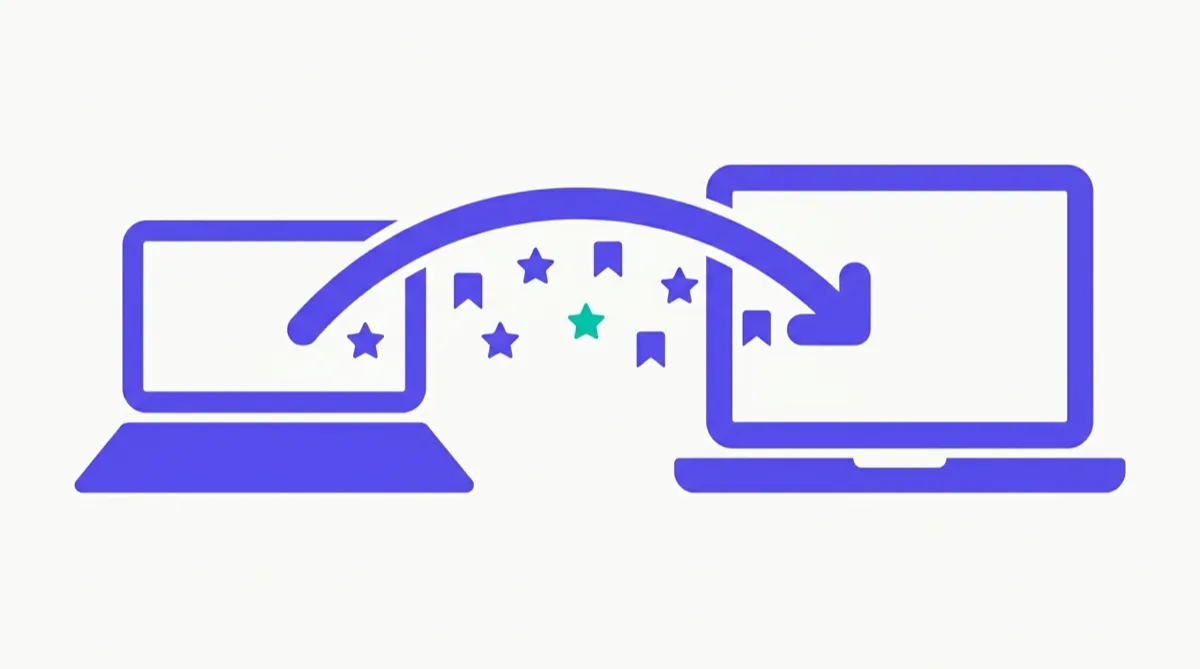
There are two ways to copy Chrome bookmarks from one computer to another, and they solve different situations. One takes about two minutes and requires no files. The other is the right choice when Google account sync is not an option. This guide explains both, when to use each, and what to check after the transfer.
Two Methods, One Decision
Method 1 — Google account sync: sign into the same Google account on Chrome on both computers. Bookmarks transfer automatically through Google’s servers without any files or manual steps.
Method 2 — Manual export and import: export a bookmarks.html file on the old computer, copy the file to the new computer, and import it.
The right method depends on three factors: whether you use the same Google account on both machines, whether you want ongoing sync after the transfer, and whether the two computers will regularly be used together or if this is a one-time migration. The decision table below covers the common scenarios.
| Situation | Recommended method |
|---|---|
| Same Google account on both computers | Sync |
| Moving to a new computer, want ongoing sync | Sync |
| Different Google accounts on each machine | Manual export/import |
| Work computer to personal computer | Manual export/import |
| Computer without internet access at destination | Manual export/import |
| Moving bookmarks between browsers | Manual export/import |
| One-time migration, no ongoing sync needed | Either — sync is still easier |
Method 1 — Google Account Sync
Google account sync is the simplest transfer method when you use the same Google account on both computers. You sign in once on the new machine, and your bookmarks appear within a few minutes.
Step 1: Confirm sync is enabled on the old computer
On the old computer, open Chrome and click the three-dot menu (⋮) → Settings → You and Google → Sync and Google services. Look at the current sync status. You want to see that sync is on and that Bookmarks is one of the items being synced.
If sync shows as off or paused, click Sync and Google services → Manage what you sync and confirm that Bookmarks is toggled on. You can choose Sync everything (which syncs bookmarks along with passwords, history, and settings) or Customize sync to select only specific items including bookmarks.
Alternatively, open chrome://settings/syncSetup directly in the address bar to reach the sync configuration page.
Step 2: Sign into Chrome on the new computer
On the new computer, open Chrome. Click the profile icon in the top-right corner (it may show a silhouette or initials). Click Sign in to Chrome (or Turn on sync if you were already signed in without sync). Enter the same Google account credentials you use on the old computer.
Step 3: Enable sync on the new computer
After signing in, Chrome will prompt you to turn on sync. Click Yes, I’m in or Turn on sync. If the prompt does not appear, go to the three-dot menu → Settings → You and Google → Turn on sync.
Step 4: Verify the bookmarks transferred
Open the Bookmark Manager on the new computer with Ctrl+Shift+O (Cmd+Option+B on Mac). You should see your folder structure and bookmarks from the old computer. The sync typically takes a few minutes for a normal-sized collection. For very large collections, allow a bit longer.
If bookmarks do not appear after 10 minutes, check that you are signed in with the correct account on both machines, and that the sync status in Settings does not show an error.
Method 2 — Manual Export and Import
When you cannot or do not want to use the same Google account on both computers, the manual method transfers your bookmarks as a portable file.
Step 1: Export from the old computer
On the old computer:
- Open Chrome and press Ctrl+Shift+O (Cmd+Option+B on Mac) to open the Bookmark Manager, or type
chrome://bookmarksin the address bar - In the Bookmark Manager, click the three-dot menu (⋮) in the toolbar at the top of the panel — this is separate from Chrome’s main three-dot menu
- Click Export bookmarks
- In the Save dialog, choose a location you can easily find — your Desktop or Documents folder works well
- Click Save
Chrome saves a file named bookmarks_MM_DD_YY.html with the current date. This file contains every bookmark and folder in your Chrome profile.
For a complete walkthrough of the export process including what the file contains and how to verify it, see How to Export Chrome Bookmarks.
Step 2: Transfer the file to the new computer
Move the bookmarks.html file to the new computer using whichever method is most convenient:
- USB drive: copy the file to a USB drive on the old computer, plug it into the new computer, and copy the file there
- Cloud storage: upload to Google Drive, Dropbox, or any cloud storage service; download on the new computer
- Email: attach the file to an email and open it on the new computer (the file is small — typically well under 1 MB even for large collections)
- Network transfer: if both computers are on the same local network, shared folders or AirDrop (on Mac) work
Step 3: Import on the new computer
On the new computer:
- Open Chrome and press Ctrl+Shift+O (Cmd+Option+B on Mac) to open the Bookmark Manager
- Click the three-dot menu (⋮) in the Bookmark Manager toolbar
- Click Import bookmarks
- In the file picker, navigate to where you saved the bookmarks.html file and select it
- Click Open
Chrome imports the bookmarks and places them inside a new folder in the Bookmark Manager. For the detailed import steps, including what happens to folder structure and how to troubleshoot a failed import, see How to Import Chrome Bookmarks.
Alternatively, you can use the main Chrome menu path: three-dot menu → Bookmarks and lists → Import Bookmarks and Settings → choose Bookmarks HTML File as the source.
Which Method Should You Choose?
If you use the same Google account on both computers and want ongoing sync going forward, use the sync method. It is faster, requires no file management, and keeps both machines automatically up to date when you add or remove bookmarks on either one.
Use the manual method when:
- You have different Google accounts on each computer — sync is per account, so you cannot sync bookmarks between two different Google accounts. The manual method lets you copy the bookmarks as data and then associate them with whichever account is on the destination machine.
- This is a work-to-personal (or personal-to-work) transfer — many workplaces manage Chrome through Google Workspace accounts. You may not want personal bookmarks syncing to a managed work account, or work bookmarks syncing to a personal account. The manual method gives you a clean one-time transfer without entangling the accounts.
- You want to keep the computers independent after the transfer — if you do not want changes on one machine to reflect on the other, the manual method is a one-time snapshot. After import, the bookmarks belong entirely to the destination computer with no ongoing link to the source.
- The destination computer is used offline — if the new computer regularly runs without internet access, sync will not work reliably. The manual method puts all the data directly on the machine.
After the Transfer: What to Check
Regardless of which method you used, it is worth spending a few minutes verifying the result before you rely on the new machine as your main browser.
Check the folder structure: open the Bookmark Manager on the new computer and confirm your main folders are present. If you used the manual method, they will be inside an “Imported” folder — you can drag them to the top level if you prefer.
Check the count: if you know roughly how many bookmarks you had, verify the number is plausible. The Bookmark Manager does not show a total count directly, but you can get a rough sense by browsing your main folders.
Test a sample of links: spot-check a handful of bookmarks across different folders to confirm they load. This also reveals whether any links were already broken before the transfer — a dead link on the old computer will be a dead link on the new one.
Check the bookmarks bar: if you had items on the bookmarks bar, confirm they transferred. For the sync method, the bar contents should appear automatically. For the manual method, the bookmarks bar folder imports as part of the file and should populate the bar if the bar is set to visible.
Taking Care of Dead Links After the Move
A bookmark transfer copies URLs — it cannot fix links that were already broken on the old computer, and it cannot predict which currently working pages will go offline next week. If you have a large collection, some fraction of it is likely pointing at pages that no longer exist.
Before or after the transfer is a good time to run a health check. Bookmend’s rot check tool scans your bookmarks for dead links entirely in your browser — nothing is uploaded. It flags links that have gone dark so you can recover important pages before they are gone for good, using Wayback Machine snapshots. For more on organizing a large collection after a transfer, see How to Manage Bookmarks When You Have Thousands of Them.
For the full step-by-step export walkthrough: How to Export Chrome Bookmarks. For moving bookmarks from another browser into Chrome: How to Transfer Bookmarks to Chrome.
Frequently asked questions
Sign in to Chrome on the new computer with the same Google account you use on the old one, then enable sync. Go to the three-dot menu → Settings → You and Google → Sync and confirm bookmarks sync is on. Your bookmarks appear on the new machine within a few minutes without any file transfers.
Only if you are using the manual export method and do not have cloud storage available. If you use Google account sync, no file transfer is needed at all. If you choose the manual method, you can transfer the bookmarks.html file via USB drive, cloud storage like Google Drive or Dropbox, or even email — the file is small, typically under 1 MB even for large collections.
Not directly through sync, because sync ties bookmarks to a single account. The manual method works here: export the bookmarks.html file while signed into the old account, then sign into the new account on the destination computer and import that file. The bookmarks will then belong to the new account going forward.
No. Sync is not a move — it is a copy that stays in sync. After signing in on the new computer, both machines will show the same bookmarks. Any changes made on either computer will sync to the other. If you do not want ongoing sync, you can sign out of Chrome after the initial transfer, though changes made on one machine after that will not reflect on the other.
Chrome imports the bookmarks.html file into a new folder typically called Imported on MM/DD/YYYY. Your existing bookmarks on the new computer are not deleted or merged — they stay exactly as they are. The imported bookmarks sit in that new folder until you manually reorganize them.
Yes, using the manual method. Export from any browser that supports bookmarks export — Chrome, Firefox, Edge, and Safari all produce HTML files in the standard Netscape bookmarks format, which any of those browsers can import. For example, exporting from Firefox and importing into Chrome works without any conversion step.
Usually a few minutes after signing in and enabling sync. If you have a very large bookmark collection (several thousand bookmarks), the initial sync may take longer. You can check sync status in Chrome's menu by going to your profile icon at the top-right — it shows whether sync is active and up to date.
The bookmarks.html file contains every bookmark's URL, title, and save timestamp, plus the full folder hierarchy. It does not include Chrome-specific metadata like the Bookmarks bar or Reading List separately — Bookmarks bar contents are included as a folder. It does not include passwords, browsing history, or extensions.
Yes. Google sync copies bookmark folders including the Bookmarks bar folder, so anything saved to the bar on the old computer will appear on the bar on the new computer, provided the bookmarks bar is set to visible on the new machine.
Yes. Both methods work regardless of the operating systems involved. Google sync is platform-agnostic. The bookmarks.html export format is also cross-platform — you can export on Windows and import on Mac, or the reverse, without any issues.
Use the manual export method. Export the bookmarks.html file on the old computer, transfer the file to the new machine, and import it there via the Bookmark Manager. Chrome lets you import a bookmarks.html file without requiring you to be signed into any account.
The original folder structure is preserved inside the Imported folder — your subfolders and their hierarchy came over correctly. The entire imported tree just lands inside a single parent folder named Imported with the date. Open the Bookmark Manager (Ctrl+Shift+O), expand the Imported folder, and drag subfolders out to wherever you want them. You cannot merge the imported structure with your existing folders automatically — that step is manual.
Yes. Chromebook runs full Chrome, and the export and import steps are identical to Chrome on Windows or Mac. The keyboard shortcut Ctrl+Shift+O opens the Bookmark Manager, and the export and import options are in the three-dot menu inside that panel.
Sync copies all bookmarks continuously and keeps both machines updated whenever a change is made on either side. It also copies your folder structure, bookmarks bar contents, and Reading List. The manual export copies a static snapshot of your bookmarks at the moment of export — it does not stay in sync, and it does not include your Chrome passwords, history, or extensions unless you use Chrome's separate backup features for those.
