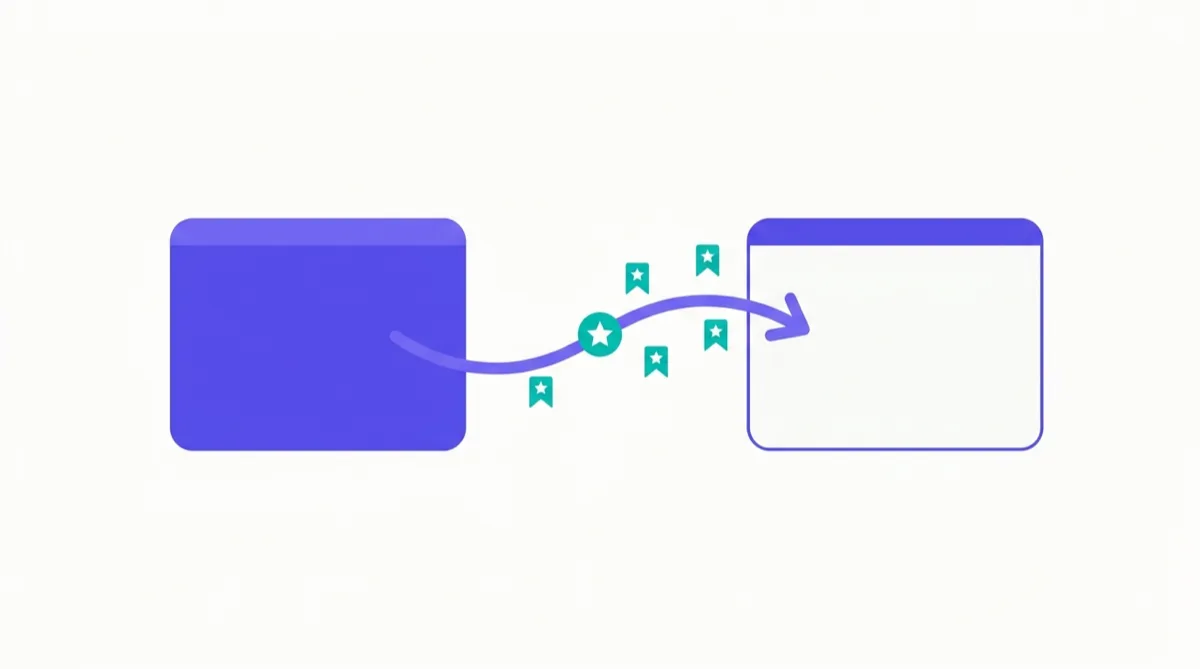
Moving bookmarks to Chrome is straightforward once you know which method applies to your situation. Whether you’re switching from Safari, Firefox, Edge, or moving between Chrome installs on different computers, this guide covers every path with exact steps, edge cases, and what to do after the transfer.
Which Method Should You Use?
There are three fundamentally different approaches to transferring bookmarks into Chrome:
- Direct browser-to-browser import: Chrome reads the other browser’s database directly — fastest, works only if both browsers are on the same machine
- HTML file-based import: Export from source browser, transfer the file, import into Chrome — works across machines and any OS combination
- Google account sync: Signs into the same account on both machines — best for ongoing sync, not a one-time migration
A quick reference:
| Situation | Recommended method |
|---|---|
| Both browsers on the same Mac or PC | Direct import (Method 1) |
| Moving from one computer to another | HTML file transfer (Method 2) |
| Two Chrome installs you want to keep in sync | Google account sync (Method 3) |
| Moving from a Pocket or read-it-later export | HTML file import (Method 2) |
| Moving from mobile Chrome to desktop | Google account sync (Method 3) |
Method 1: Chrome’s Built-In Direct Import
Chrome can import bookmarks directly from browsers installed on the same machine. No export file needed — Chrome reads the other browser’s data directly.
Importing from Safari (Mac Only)
Safari is only available on macOS, so this path only works on a Mac with both Chrome and Safari installed.
- Open Chrome on your Mac
- Click the three-dot menu (⋮) in the top right corner
- Select Bookmarks and lists (in older Chrome versions, this may appear as just Bookmarks)
- Click Import bookmarks and settings
- In the dropdown, select Safari
- Check Favorites/Bookmarks — and any other items you want (history, saved passwords if desired)
- Click Import
Chrome reads Safari’s bookmarks database directly and places the imported bookmarks in a folder labeled “Imported from Safari.” This happens in seconds regardless of how many bookmarks you have.
What if Safari doesn’t appear in the dropdown? If Safari is installed but not showing up, try closing Safari completely before running the Chrome import. In some cases, Chrome can’t read Safari’s database while Safari has a lock on it.
What if you’re on a Mac but moving from Safari to Chrome across devices? Safari doesn’t appear on Windows, so you’ll need to export from Safari first using the HTML method (Method 2 below).
Importing from Firefox
- Open Chrome
- Three-dot menu → Bookmarks and lists → Import bookmarks and settings
- Select Mozilla Firefox from the dropdown
- Check Favorites/Bookmarks
- Click Import
Chrome reads Firefox’s places database directly. If you have multiple Firefox profiles, Chrome may ask which profile to import from — select the one containing the bookmarks you want.
Edge case — What if Chrome shows an error importing from Firefox? Firefox’s database file may be locked if Firefox is running. Close Firefox entirely (check Task Manager or Activity Monitor to confirm it’s not running in the background), then retry the Chrome import.
Importing from Microsoft Edge
- Open Chrome
- Three-dot menu → Bookmarks and lists → Import bookmarks and settings
- Select Microsoft Edge from the dropdown
- Check Favorites/Bookmarks
- Click Import
Edge uses a Chromium-based format, so the transfer is clean. Imported favorites appear in a folder labeled “Imported from Edge.”
Note on Edge versions: This path works for modern Edge (Chromium-based, released 2020 onward). The legacy Edge that came with Windows 10 before 2020 had a different database format and may not appear in Chrome’s dropdown. For legacy Edge, use the HTML file method below.
What If the Other Browser Doesn’t Appear in Chrome’s Dropdown?
Chrome’s direct import only supports browsers it can detect on the same system. Less common browsers (Opera, Brave, Vivaldi) may not appear in the dropdown, and cross-platform transfers don’t work this way. In those cases, use Method 2 (HTML file).
Method 2: Transfer via a Bookmarks HTML File
This is the universal method. It works for any browser combination, any operating system, and any distance between computers. Every major browser can both export and import the standard Netscape bookmarks HTML format.
Step 1: Export Bookmarks From the Source Browser
From Firefox:
- Press Ctrl+Shift+B (Windows/Linux) or Cmd+Shift+B (Mac) to open the Library
- Click Import and Backup → Export Bookmarks to HTML
- Choose where to save the file
From Safari (Mac):
- From the menu bar, click File → Export Bookmarks
- Safari saves it as
Safari Bookmarks.html
From Microsoft Edge:
- Three-dot menu → Favorites → click the ⋮ icon in the Favorites panel → Export favorites
- Saves as
favorites_MM_DD_YY.html
From Brave:
- Three-line menu → Bookmarks → Bookmark Manager → click the ⋮ in the manager → Export bookmarks
From Opera:
- Press Ctrl+Shift+B to open the Bookmarks Manager → Import/Export → Export bookmarks to HTML
From Chrome on another computer:
- Three-dot menu → Bookmarks and lists → Bookmark Manager
- Click the ⋮ inside the Bookmark Manager → Export bookmarks
- For more detail, see how to export Chrome bookmarks
From Pocket (ril_export.html):
If you exported your Pocket data before its shutdown, the ril_export.html file is already in Netscape bookmarks format and can be imported directly into Chrome using the step below.
Step 2: Transfer the File to Your Target Machine
If you’re importing on the same machine you exported from, skip this step. If you’re moving between computers:
- USB drive: Copy the
.htmlfile to a USB drive and copy to the new machine - Email to yourself: Attach and send the file; open on the new machine
- Cloud storage: Upload to Google Drive, Dropbox, or iCloud; download on the new machine
- AirDrop (Mac to Mac): Share the file directly over AirDrop
The file is plain HTML text and is typically small (a few kilobytes to a few hundred kilobytes depending on bookmark count) — fast to transfer by any method.
Step 3: Import the File into Chrome
- On the destination machine, open Chrome and press Ctrl+Shift+O (Windows/Linux) or go to
chrome://bookmarksdirectly - In the Bookmark Manager, click the ⋮ menu in the toolbar at the top of the panel
- Click Import bookmarks
- Select the
.htmlfile - Chrome imports all bookmarks and places them in an “Imported” folder inside “Other Bookmarks”
If you can’t find the Imported folder after import, look in the left panel of the Bookmark Manager. Scroll down to “Other Bookmarks” — the Imported folder is always placed there, not in the Bookmarks bar.
Organizing After Import
Imported bookmarks land in a single “Imported” folder with your original subfolder structure preserved inside it. You have a few options:
- Leave as-is: The folder stays accessible and searchable
- Drag and merge: In the Bookmark Manager, expand the Imported folder and drag individual folders and bookmarks into your existing Chrome structure
- Rename the imported folder: Right-click the “Imported” folder and choose “Rename” to give it a meaningful name like “From Safari 2026”
Chrome does not auto-merge or deduplicate during import. If you import into a Chrome profile that already has some of the same bookmarks, you’ll end up with duplicates. You can clean those up manually, or use a tool like Bookmend to detect and surface duplicates across your bookmark collection.
Method 3: Moving Chrome Bookmarks Between Two Computers via Google Sync
If both computers run Chrome and you want bookmarks to stay synchronized going forward — not just a one-time transfer — signing into the same Google account is the right approach.
Setting Up Sync
- On both computers, open Chrome
- Click the profile icon in the top right and sign in with the same Google account (or confirm you’re already signed in)
- Click the profile icon again → Settings → Sync and Google services → Manage what you sync
- Confirm Bookmarks is toggled on (it’s on by default if sync is enabled)
Once sync is active, bookmarks appear on the other device within minutes. Changes made on one device — additions, deletions, folder reorganizations — propagate to all other devices signed in with the same account.
Important Limitation of Sync vs. Backup
Sync is real-time and bidirectional. If you accidentally delete a bookmark folder on one device, that deletion syncs to every other device immediately. Sync does not provide rollback or version history.
For a true backup with rollback capability, export your bookmarks periodically to a .html file (Method 2) and keep dated copies. Sync and export backups complement each other — sync handles continuity across devices, exports give you a point-in-time recovery option.
Moving Chrome Bookmarks Between Profiles on the Same Computer
If you use multiple Chrome profiles (personal and work, for example) and want to copy bookmarks from one profile to another:
- Switch to the profile containing the bookmarks you want to copy (click your profile icon in the top right → select the profile)
- Export bookmarks from that profile (Bookmark Manager → ⋮ → Export bookmarks)
- Switch to the destination profile
- Import the
.htmlfile in the destination profile (Bookmark Manager → ⋮ → Import bookmarks)
There’s no direct profile-to-profile copy inside Chrome — export/import is the only built-in path. Third-party extensions don’t have access across profile boundaries either.
Transferring Bookmarks from Chrome on Android or iPhone to Desktop
Chrome on mobile (Android and iOS) does not support bookmark export. There is no export button or bookmarks HTML option on the mobile app.
The only supported path for mobile-to-desktop transfer:
- Sign into Chrome on your mobile device with your Google account
- Make sure bookmark sync is enabled (Chrome Settings → Sync → Bookmarks)
- Open Chrome on desktop signed into the same Google account
- Bookmarks sync automatically within a few minutes
If sync isn’t working between mobile and desktop, check: both are signed into the same Google account; sync is enabled on both; you’re not using a different account on one device.
What to Do After Transferring: Check for Dead Links
A freshly imported bookmark collection — especially one from a browser or device you haven’t actively used recently — is likely to contain some dead links. Pages go offline over time, and an import doesn’t tell you which URLs still resolve.
This is true even for a recent export: some pages may have gone dead in the last few months, and you won’t know until you click them.
Before spending time reorganizing your newly imported bookmarks, consider running a health check first. Bookmend’s free rot check lets you drop in a bookmarks.html file and see which links return errors — entirely in your browser, with no data uploaded anywhere.
For ongoing monitoring of your Chrome bookmarks after the transfer, Bookmend installs as an extension and monitors your bookmarks continuously — no re-migration needed, it works with whatever is in your Chrome bookmarks folder. It also detects duplicates, which are common after a cross-browser import.
Common Problems and Edge Cases
“Imported” folder is empty after import: This usually means Chrome’s import silently failed. Check that the .html file isn’t corrupted (open it in a text editor — it should start with <!DOCTYPE NETSCAPE-Bookmark-file-1>). If the file looks correct, try closing and reopening Chrome and importing again.
Bookmarks imported in wrong order: Chrome imports bookmarks in the order they appear in the HTML file, which reflects the original order from the source browser. If order matters to you, reorganize after import.
Duplicate bookmarks after import: When importing into a Chrome profile that already has some bookmarks, duplicates are common. Chrome doesn’t deduplicate during import. Use the Bookmark Manager’s search to find duplicates, or use Bookmend’s duplicate detection to surface them automatically.
Folder structure missing after import: If imported bookmarks appear as a flat list without folders, the source browser’s export may not have preserved folder structure properly. Firefox and Chrome exports reliably preserve folders; some less common browsers may not.
Chrome shows “No items imported”: This typically means the .html file was in a format Chrome doesn’t recognize, or the file was empty. Check that the file came from the export function (not a saved webpage that happens to be named something.html), and that it’s not zero bytes.
After your transfer is complete, see our guide on how to export Chrome bookmarks for tips on keeping a regular backup once everything is in one place. For checking which bookmarks are still live after the transfer, Bookmend’s rot check tool runs entirely in your browser.
Frequently asked questions
Yes. The Netscape bookmarks HTML format includes an ADD_DATE attribute for each bookmark containing a Unix timestamp. Chrome preserves these timestamps on import, so your original save dates remain accurate. This is important if you are transferring from Pocket and want to know when you originally saved each link.
Not through any built-in method. Chrome on Android has no export function. If you want to avoid using a Google account, one workaround is to use a bookmark sync extension that supports export, but this requires more setup. The simplest path remains Google account sync.
Chrome does not deduplicate during import. You will end up with both the original bookmark and the imported one as separate entries. To identify and remove duplicates after import, use the Bookmark Manager's search to look for specific URLs, or install Bookmend which surfaces duplicate bookmarks across your entire collection.
Yes, for all major browsers — Chrome, Firefox, Safari, and Edge. Folder hierarchy is preserved in the HTML export format and Chrome recreates it on import. Everything sits inside the parent Imported folder in Chrome's Other Bookmarks section.
There is no direct export from Safari on iPhone. The indirect path: sync your iPhone Safari bookmarks to iCloud, which makes them visible in Safari on Mac, then export from Safari on Mac to an HTML file, then import that file into Chrome on Mac.
Not through any built-in feature of either browser. Third-party sync services and browser extensions exist that attempt cross-browser sync, but they require additional setup and an external service. For most users, picking one primary browser and migrating fully is more reliable.
Switch to the profile containing the bookmarks you want to copy by clicking the profile icon in Chrome's top right and selecting that profile. Export bookmarks from that profile using Bookmark Manager then Export bookmarks. Switch to the destination profile, then import the HTML file via Bookmark Manager then Import bookmarks. There is no direct profile-to-profile copy inside Chrome.
Chrome's direct import only supports browsers it can detect on the same system. Less common browsers such as Opera, Brave, and Vivaldi may not appear in the dropdown. Cross-platform transfers do not work through direct import. In those cases, use the HTML file method: export from the source browser, transfer the file, and import it into Chrome.
Chrome always places imported bookmarks inside a folder labeled Imported, which is created inside Other Bookmarks — the third section in the Bookmark Manager after Bookmarks Bar and My Bookmarks. If you cannot find your imported bookmarks, scroll down in the left panel of the Bookmark Manager, as Other Bookmarks may be collapsed.
This usually means Chrome's import silently failed. Check that the HTML file is not corrupted by opening it in a text editor — it should start with DOCTYPE NETSCAPE-Bookmark-file-1. If the file looks correct, try closing and reopening Chrome and importing again.
Google account sync is ongoing and bidirectional — any changes made on one device propagate to all other devices signed in with the same account. This is the right approach if you want bookmarks to stay synchronized going forward. For a one-time transfer without ongoing sync, the HTML file method gives you a standalone copy you import once, with no ongoing connection between the two machines.
