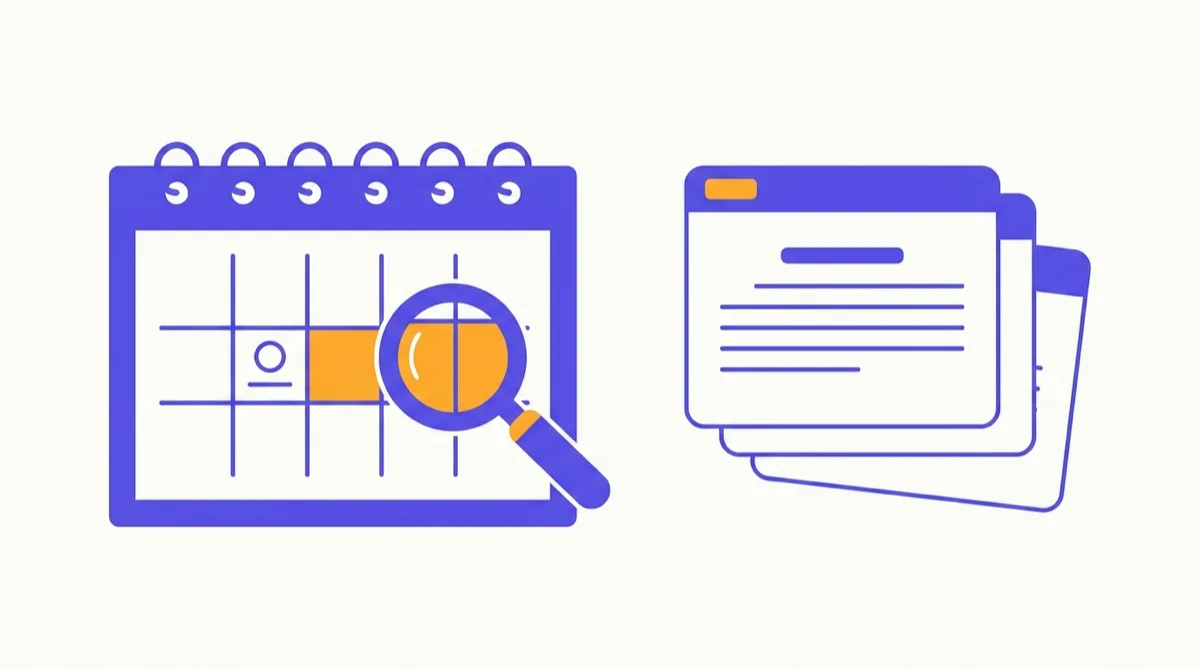
The Wayback Machine at web.archive.org is run by the nonprofit Internet Archive and stores hundreds of billions of snapshots of websites going back to 1996. Knowing how to navigate it efficiently makes the difference between finding what you need in seconds versus giving up after a confusing first look. This guide focuses specifically on using the Wayback Machine itself — for a broader overview of all the ways to find archived or cached web pages, see our website archive tools guide.
Searching for an Archived Site
The main interface is a search box on the homepage. To find archived snapshots of any URL:
- Go to web.archive.org.
- Paste the full URL — including
https://— into the search box labeled “Enter a URL or words.” - Press Enter or click Browse History.
If the URL has been captured, you land on the calendar view. If nothing was captured or if the site requested exclusion, you will see a message indicating no results.
Tip: If you search for a root domain like example.com, you will see snapshots of the homepage. For a specific page or article, enter the full URL path (e.g., https://example.com/articles/2018/my-article).
Reading the Calendar View
The calendar view is the core navigation tool on the Wayback Machine. Here is how it works:
What the dots mean
Each day with at least one snapshot shows a colored circle. The size or shade of the circle indicates snapshot density — a larger or darker dot means more captures were made that day. A single automated crawl typically produces one or two snapshots per day for most sites.
Navigating the timeline
Use the left and right arrows to move between years. The row of years at the top of the page also links directly to each year’s calendar. The current view shows one year at a time.
Selecting a snapshot
- Click on a highlighted date. A small bar appears showing the specific capture times for that day (e.g., “3 captures: 09:12, 14:33, 22:07”).
- Click the specific time you want.
- The archived page loads in the Wayback Machine’s viewer, with a toolbar at the top showing the capture date and navigation controls.
The orange toolbar
When viewing an archived page, the bar at the top shows the snapshot date and time, and provides arrows to jump to the next or previous capture of that URL. The calendar icon opens the full history for the URL.
Save Page Now: Archiving a Live URL
Any logged-in Internet Archive user can submit a URL for immediate archiving through Save Page Now.
- Go to web.archive.org.
- Find the Save Page Now section on the right side of the homepage.
- Type or paste the URL you want to preserve.
- Click Save Page.
The Wayback Machine fetches the page and saves a snapshot. Once complete, it returns a permanent archive URL in the format https://web.archive.org/web/[timestamp]/[url]. You can share this link or save it as a bookmark. The page will remain accessible even if the original URL goes offline.
When to use it: Save Page Now is useful for archiving research sources, capturing a page before sharing a link that might change, or preserving a personal site before you take it down.
The Wayback Machine API
For developers or anyone who needs to look up archive data programmatically, the Wayback Machine offers several APIs.
Availability API
Returns the closest snapshot to a given date for a URL:
https://archive.org/wayback/available?url=example.com×tamp=20200601The timestamp parameter is optional and follows the format YYYYMMDDhhmmss. If omitted, it returns the most recent snapshot. The response is a JSON object containing the archive URL and exact capture timestamp.
CDX API
Returns detailed metadata about every crawl for a given URL or URL pattern. Useful for retrieving all snapshot timestamps for a site:
http://web.archive.org/cdx/search/cdx?url=example.com&output=json&limit=10Parameters like from, to, limit, and output let you filter results by date range, set a result cap, and choose the output format (json, csv, text).
Waybackpy Python library
Waybackpy is an open-source Python package that wraps the Wayback Machine APIs and makes programmatic archiving and retrieval accessible without writing raw HTTP calls.
Known Limitations
robots.txt exclusions
If a website’s robots.txt included a directive asking the Wayback Machine not to archive it, the archive will block access to those snapshots even if they were captured. You will see a message indicating the site has requested its pages not be displayed. This is an intentional policy the Internet Archive respects.
JavaScript-heavy sites
The Wayback Machine captures HTML, images, CSS, and linked assets at crawl time, but it cannot execute JavaScript or call live APIs. Modern single-page applications, social media timelines, and sites that load content dynamically often render poorly or incompletely in the archive. Static or server-rendered pages from earlier eras tend to look closer to the original.
Content behind logins
Pages requiring authentication cannot be captured by automated crawlers. Social media profiles set to private, paywalled articles, and account dashboards will have no archived versions.
Size limits and crawl frequency
Very large pages, video content, and streaming media are often not fully captured. High-traffic sites like news publishers may have thousands of snapshots per day; small personal sites may be crawled only once a month or less.
Availability status
In 2026, the Wayback Machine continues to operate and expand its collection. In early 2024, Google removed its own page cache and began linking to the Wayback Machine directly from search results as an alternative, increasing both traffic and the importance of the archive as a public resource.
Using the Wayback Machine for Specific Research Tasks
Finding a deleted article or blog post
Enter the exact URL if you have it. If you only have the domain, look at dates around when the content was live and browse snapshots to find the article in the site’s navigation or archives.
Verifying what a website said on a specific date
Enter the URL and navigate to the calendar date in question. Click through the snapshots closest to that date. This is commonly used in journalism, legal research, and fact-checking.
Recovering a site you used to own
If you deleted your site or let the domain lapse, search for your old domain. Any captured snapshots belong to the Internet Archive’s public record, and you can view them freely.
Navigating Within an Archived Snapshot
When you load a Wayback Machine snapshot, internal links on the page are also rewritten to point to archived versions — where they exist. Clicking a link from an archived page takes you to the Wayback Machine snapshot of that linked URL closest in date to the current snapshot you are viewing.
This means you can browse an archived version of a site across multiple pages, as long as the Wayback Machine captured both the page and the pages it links to. Coverage is uneven: a snapshot of a major site’s homepage will often have archived versions of its key linked pages, but obscure internal pages or assets from external CDNs may return “Page Not Found” within the archive.
The orange toolbar at the top of every archived page lets you:
- Click the calendar icon to jump to a different date’s snapshot of the same URL
- Use the left and right arrows to move to the previous or next capture of the current URL
- Click Close on the toolbar to view the archived page without the Wayback Machine toolbar overlay (useful for screenshots or readability)
Save Page Now 2 (SPN2): Advanced Archiving Options
The standard Save Page Now (for logged-in Internet Archive users) has an advanced version called SPN2 that includes additional options for thorough captures.
When logged in, on the Save Page Now panel you may see an All Pages or Advanced toggle that exposes:
- Save error pages: Captures 404 and redirect responses, not just successful loads
- Save outlinks: Attempts to save linked pages from the submitted URL (limited recursive crawl)
- Capture screenshots: Stores a screenshot of the rendered page alongside the HTML
SPN2 is available to Internet Archive account holders. Creating an account is free. If you need to save a page with its linked resources (rather than just the top-level URL), clicking outlinks capture saves the immediate links from the page in the same crawl session. This does not save the entire site — it saves one level of links from the submitted URL, which is useful for capturing a news article’s images or embedded pages.
How Google Search Integrates With the Wayback Machine
Since Google shut down its own page cache in February 2024, it began surfacing Wayback Machine links directly in search results as an alternative for cached pages. If you click the three-dot icon next to a search result in Google Search and see a “Cached” or “Archived” option, it may link to the Wayback Machine rather than a Google-hosted cache.
This change significantly increased traffic to the Wayback Machine and made it a more prominent recovery tool for everyday web users — not just researchers. It also means that for recently cached pages, the Wayback Machine may be the only accessible archived copy, making timely submissions through Save Page Now more important for content you want preserved.
What to Do When a URL Returns No Results
If you search a URL and the Wayback Machine shows no snapshots, there are a few possibilities:
- The site blocked crawlers via robots.txt. Search results will show a notice if this is the case.
- The URL was never crawled. Particularly common for personal sites, niche blogs, and pages published after the main crawl cycles.
- The URL pattern changed. Try searching the root domain (example.com) instead of the full path — you may find a different URL structure was used in older snapshots.
- Try archive.today. User-submitted archives may have the page even if the Wayback Machine does not. See our archive.today guide for how to search there.
- Try Google’s cache (if still indexed). Some older pages remain in Google’s index with a cached version, though this cache was reduced after February 2024.
If a site was large and popular, the Wayback Machine almost certainly has it — the issue is usually finding the right URL or date range. Browsing the site’s calendar view at the domain level (enter just the root domain) and looking for dense snapshot periods can reveal when the site was most actively crawled and help you navigate to the specific page you need from there.
Protecting Your Own Pages with Bookmend
When you save a page to Chrome’s bookmarks, the URL is stored — but not the content. If that page is later deleted, paywalled, or moved, you are left with a dead link. Bookmend saves a local snapshot of every page you bookmark, and when a bookmarked URL goes dead, it finds the closest Wayback Machine snapshot near your original save date — so you can recover what you saved without manually searching the archive. Run a free rot check on your bookmarks here.
Frequently asked questions
Go to web.archive.org, type or paste the full URL (including https://) into the search box, and press Enter or click Browse History. You will see a calendar grid with dots marking every date a snapshot exists. Click a date, then choose a specific capture time to view that snapshot.
Each dot represents a day with at least one snapshot. The dot's size (and sometimes shade) indicates snapshot density — a larger or darker dot means more captures were made that day. Hovering over a dot shows the exact count. Blue dots are standard snapshots; other colors can indicate specific crawl types or redirect chains.
On the web.archive.org homepage, find the Save Page Now section on the right side. Type or paste the URL and click Save Page. The process takes a few seconds to a few minutes depending on page size. You receive a permanent archive URL you can share or bookmark. You must create a free Internet Archive account to use Save Page Now with full features.
No. Sites can opt out by including a specific entry in their robots.txt file, and the Wayback Machine respects those exclusions. Very new sites, sites behind login walls, and some content-heavy apps may have few or no snapshots.
Yes. The Availability API returns the closest snapshot to a given timestamp. The endpoint is https://archive.org/wayback/available?url=example.com×tamp=20200101 (timestamp is optional and uses YYYYMMDDhhmmss format). It returns a JSON object with the closest archive URL. The CDX API provides more detailed crawl metadata.
JavaScript-heavy pages, single-page apps, and pages that loaded content from external CDNs or APIs at the time of capture often render incorrectly. The HTML and images may be archived, but dynamic elements that relied on live server calls will not function. Static pages and older websites tend to render more faithfully.
The earliest snapshots date to 1996 for some high-traffic sites, though coverage was sparse in those early years. For most commercial websites, reliable snapshots typically start around 2000–2005. Newer or smaller sites may have their first snapshot only from recent years.
You can download individual pages by saving the HTML through your browser. Bulk downloads of a site's archive are possible via the Internet Archive's download pages and APIs, but it requires technical knowledge and can be slow for large sites. The Wayback Machine's CDX API lists all captures for a given URL pattern.
If a website's robots.txt file contained a directive asking crawlers not to archive it, the Wayback Machine will block access to those snapshots, even if they were captured. You may see a message saying the site has requested the page not be archived. This is an intentional policy of the Internet Archive.
No. The Wayback Machine crawls publicly accessible URLs. Pages that require a login to view cannot be captured by automated crawlers, and any content gated behind authentication will not be in the archive.
The Wayback Machine is an automated crawler run by the nonprofit Internet Archive — it captures millions of pages without anyone requesting it. archive.today only saves pages when a user explicitly submits them. The Wayback Machine has much broader historical coverage; archive.today is better for on-demand, user-controlled archiving. See our guide on Wayback Machine alternatives for a full comparison.
Yes. Every snapshot has a permanent URL in the format: https://web.archive.org/web/[timestamp]/[original URL]. For example: https://web.archive.org/web/20150601120000*/example.com. You can share this URL and it will always load that specific snapshot.
